How Clipcroft Works
Link your devices in two steps: create a clipboard on one, open it on the other. No account, no install. Send text, links, and files of any size.
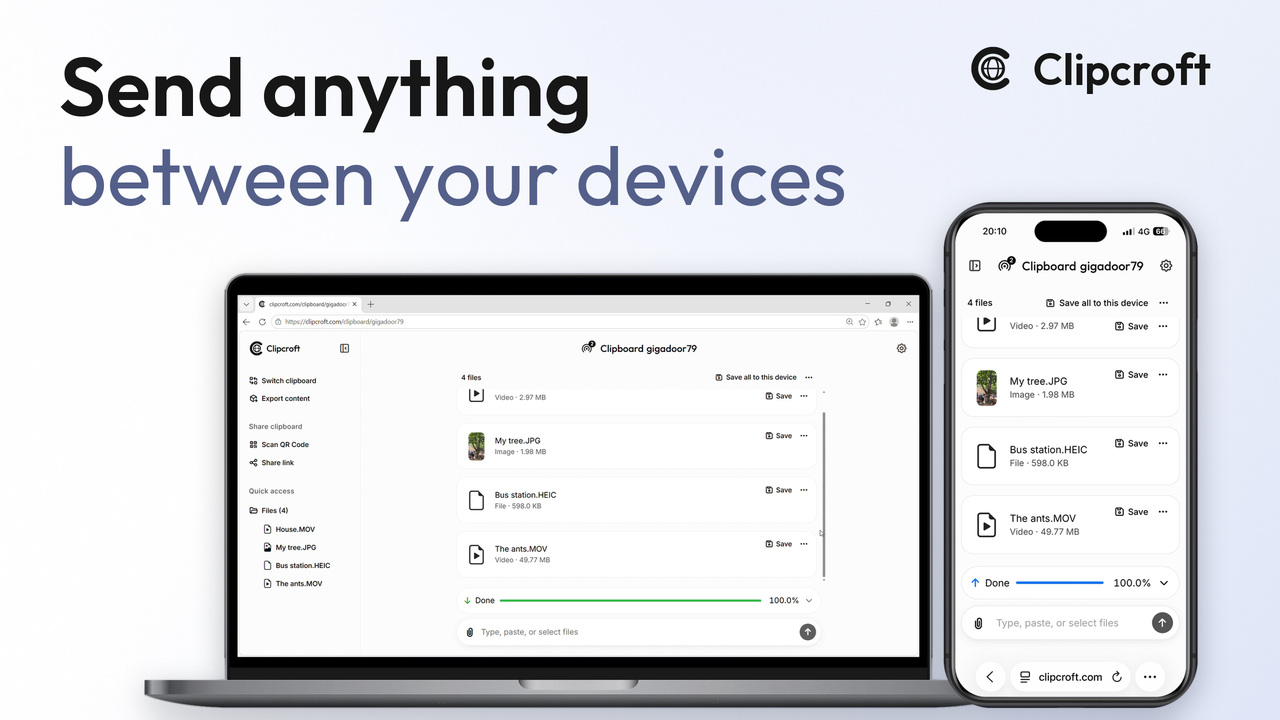
Three steps to share anything
Browser-to-browser — not server-to-browser
Most clipboard and file-sharing tools work the same way: your device uploads content to a server, the server stores it, and your other device downloads it from the server. Your files sit on someone else's infrastructure, sometimes for days.
Clipcroft works differently. When both devices are on the same clipboard, the browsers establish a peer-to-peer (P2P) connection using WebRTC — the same technology that powers video calls in Google Meet. Your files travel over that browser-to-browser connection. Text takes a lighter path — it syncs in real time through our server, which instantly relays each message to your other device.
What this means for you: your files travel browser-to-browser over the WebRTC connection, and your text syncs through a real-time relay. Both are always encrypted in transit — DTLS for files, TLS for text — and an optional password adds end-to-end encryption on top.
What our servers are for
Clipcroft's servers help your browsers find each other — the initial signaling for the peer-to-peer file connection — and relay your text messages in real time. Files travel over the connection between the two browsers; if they can't connect directly, the encrypted file stream is relayed through one of our servers. For text, our servers pass each message straight through to your other device.
Your text, your files and your clipboard history are stored only in your devices' browsers — never on any server.
What the clipboard name is — and isn't
The clipboard name (like "coolfox7" or "warmowl42") is a shared session key, not a user account — it's simply how your devices land on the same clipboard. There's no account behind it. Transfers are always encrypted. Optionally, set a password when you create a clipboard — an encryption key is derived locally on your device and used to encrypt everything before it leaves your browser, so the name alone won't open it.
How long does a clipboard last?
Say you create the clipboard "coolfox7" on your phone and open it on your laptop. You send a photo from the phone and it shows up on the laptop. Now each device has the photo in its browser's storage. On the laptop you save the photo, so you can keep it on the hard drive, a USB drive or wherever you like.
Now that the photo is safe on your laptop, you close the clipboard on both devices.
The next day, you want to send a video. On both devices, "coolfox7" is waiting among your recent clipboards on the home page, so you open it again with one tap: the clipboard is still there, and so is yesterday's photo, because each browser kept its copy. You send the video and it arrives just like the photo did.
A week after you sent the photo, you open the clipboard again. The video is there but the photo isn't. What happened? On Clipcroft, content is kept for 7 days by default. In Settings you can change that to anything from 1 hour to forever, and you can delete the content yourself whenever you want.
So, how long does a clipboard last? The clipboard itself never expires. You can open "coolfox7" next month or next year and use it again. Just keep in mind that your content lives on your devices, and each device deletes it according to the time you have set in Clipcroft on that device.
In a few exceptional cases the browser's storage is cleared sooner: when the device is running very low on space, when you clear the browser's data for the site yourself, or when you used Clipcroft in a private window and then close it.
What you can share
Browser and device support
Clipcroft runs in any modern browser that supports WebRTC — Chrome, Edge, Firefox, Safari, and others. No app to install, no extension required. It works on Windows, macOS, Linux, ChromeOS, Android 8 or newer, and iOS 15.4 or newer. Step-by-step guides for the common pairs: iPhone to Windows, Android and Windows, iPhone to Mac without iCloud, Linux and Android — and more in what people use Clipcroft for.
All transfers require both devices to be online at the same time — a deliberate privacy choice. The only way to deliver to an offline device is to hold your content on a server until it reconnects; Clipcroft has no such drop-box. Text and files are saved locally in your browser, so they're still there when you reload the page.
Frequently asked questions
Privacy & data
Is my data stored on a server?
No. Text and files travel between devices and are not stored on any server — none of it is written to any database.
Do I need an account to use Clipcroft?
No. Clipcroft has no account system — no Apple Account, no Microsoft account, no Google account, no email, no signup.
Can I password-protect a clipboard?
Yes. Transfers are always encrypted — DTLS for files, TLS for text — and when you create a clipboard you can set an optional password to add end-to-end encryption on top. The encryption key is derived locally in your browser — everything is encrypted before it leaves your device, and we never see the password or the unencrypted content.
How do I share a password-protected clipboard?
Share the clipboard name as you would for any clipboard, and give the other person the password through a separate channel — in person, by SMS, or however you prefer. They open the same name and enter the password; nothing decrypts without it.
Is Clipcroft a private online clipboard?
Yes. Every transfer is encrypted — DTLS for files, which travel browser-to-browser via WebRTC and are not stored on any server, and TLS for text. An optional password adds end-to-end encryption on top, making it an encrypted clipboard online: AES-GCM encryption keyed from a PBKDF2-derived secret that never leaves your browser. With a password, even the small text messages relayed through the server are end-to-end encrypted, and the items kept in the browser's local storage are also encrypted at rest. See our guide to using Clipcroft as an online clipboard with a password for the full walk-through.
Does Clipcroft auto-lock if I leave it open?
Yes, for password-protected clipboards. Clipcroft has an AutoForget feature: after a configurable idle window — set in Settings — the clipboard automatically locks itself and forgets the decryption key. To read the items again, you re-enter the password. AutoForget defers if a transfer is in flight (so it never interrupts a running transfer) and the idle window restarts whenever a transfer ends. Useful for shared laptops or anywhere you don't want a sensitive clipboard sitting unlocked while you step away.
Using Clipcroft
Is Clipcroft free?
Yes — text sharing and file transfers are free with no per-file size cap, no per-day cap, and no per-month cap. The model is ad-supported.
Can I paste files directly?
Yes. Copy one or more files and paste them into the send area, or press Ctrl+V (Cmd+V on a Mac) anywhere on the page — they're sent like any other file. You can also take a screenshot and paste it straight in: it arrives as an image file with a timestamped name like "Pasted image — Apr 24 at 14.30.png".
Does my clipboard survive a reload?
Yes. Text and files are saved in your browser, so a reload doesn't lose them. Browsers can clear stored data when storage runs low or a site goes unused for a while, so save the files you want to keep to your device. Clipcroft itself clears items after 7 days — you can change that, or clear everything, in Settings.
How do I save files I receive?
Click Save on any file to save it to your device, or Save all to this device at the top of the content to save everything at once. The more-options menu on each file offers copy, share, and other actions, and the sidebar's Export content option can also save all your files or download them together as a single ZIP.
What if a transfer drops mid-way?
It resumes automatically as soon as the connection is back. Whatever has already arrived is kept in your browser, so the transfer picks up exactly where it stopped — nothing is re-sent from the start.
Can I transfer many files at once?
Yes. Drop any number of files and they go into a transfer queue. The queue shows live per-file status (Waiting, Preparing, Connecting, Sending, Retrying, Sent, Failed, or Canceled). You can cancel any single file without affecting the rest of the queue, and you can retry a failed file without re-selecting it. If the connection drops mid-queue, transfers auto-resume from the last received byte and the queue keeps moving.
Can more than two devices join the same clipboard?
Yes. Up to 20 devices can join the same clipboard and send or receive in real time. Items synchronize live across all of them, including deletions.
If I delete an item, does it disappear on the other device?
Yes. Deleting an item — or clearing the clipboard — removes it from every connected device in real time.
Why does Clipcroft ask whether to keep my screen on when a transfer starts?
On mobile, the screen lock can interrupt a file transfer. That's why we ask whether you want to keep the screen on, and we remember your choice. The screen stays on as long as the browser allows it.
Does it work on iPhone?
Yes. Any browser on iOS 15.4 or newer works — Safari, Chrome, Firefox. No app install needed.
Can I transfer files between iPhone and Windows?
Yes. Any modern browser works on either side. Create a clipboard on one device, open it on the other, and start sharing. See the iPhone to Windows guide.
Do both devices need to be on the same Wi-Fi?
No. Clipcroft works over any internet connection, so one device can be on cellular while the other is on home Wi-Fi. On the same network, files usually go peer-to-peer at local-network speed.
Open Clipcroft on both devices, create a clipboard on one, open it on the other, and start sharing — no account, no install.
Open Clipcroft